Engineering notes
How to configure an Nginx reverse proxy safely
Learn to configure Nginx reverse proxy for Docker or local apps, with headers, HTTPS, timeouts and checks that prevent common production failures on a VPS.
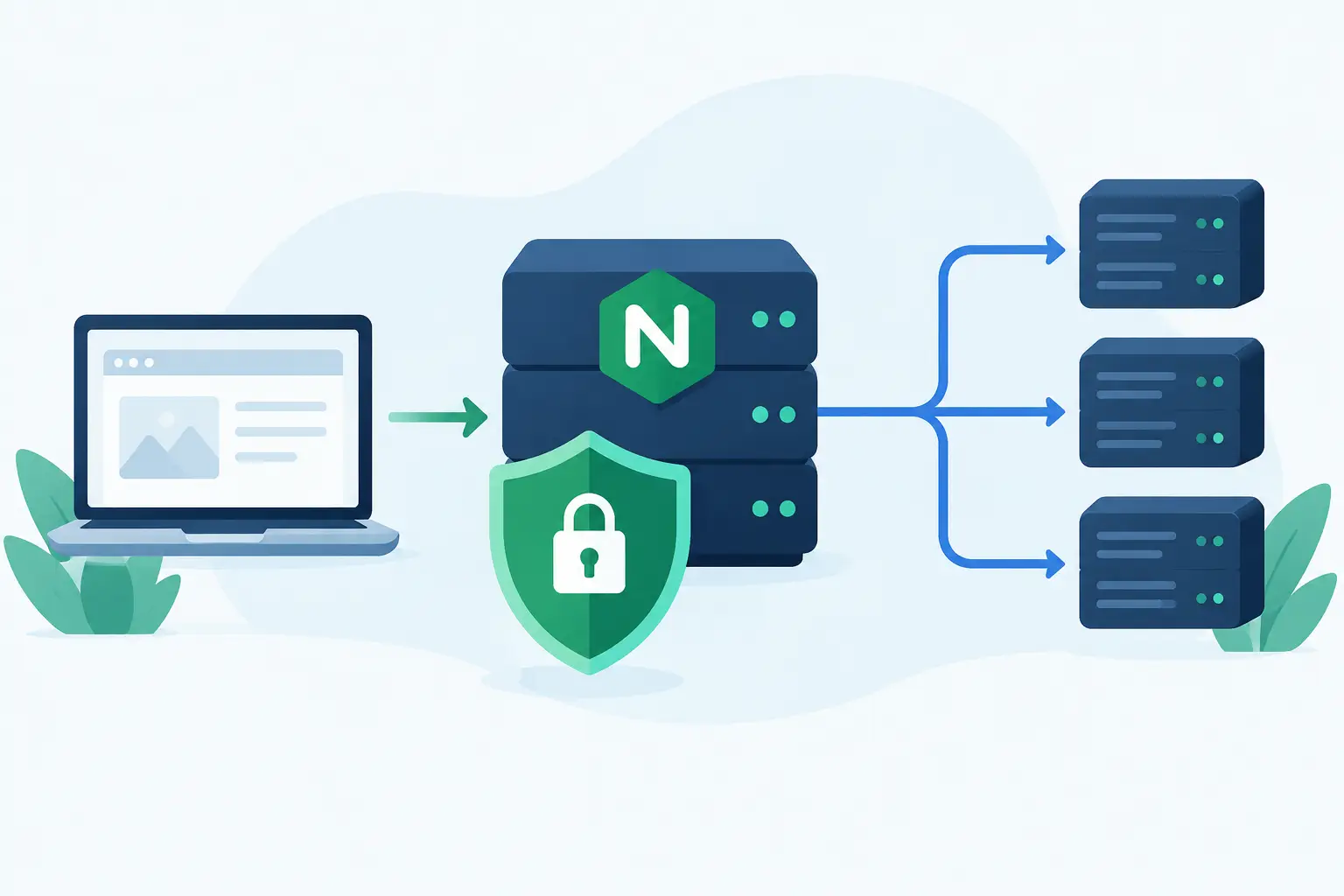
A reverse proxy is often the point where a working application becomes a usable service. It accepts requests on ports 80 and 443, selects the right hostname, terminates TLS, and passes traffic to an application that should usually remain private. To configure Nginx reverse proxy correctly, treat it as part of your application boundary, not as a block of copied configuration.
This guide uses Ubuntu or Debian-style paths and package commands, but the Nginx directives are broadly the same on other distributions. The example assumes an application listens on 127.0.0.1:3000 and should be published as app.example.uk.
Decide what Nginx should expose
Before editing a server block, verify where the upstream application listens:
sudo ss -ltnpFor a single-host deployment, bind the application to 127.0.0.1 or a Unix socket. Do not bind it to 0.0.0.0 unless you deliberately need direct network access. If your firewall rule is wrong, a public bind can expose the application port alongside Nginx, bypassing TLS, request limits, access controls, and any authentication you put at the proxy layer.
With Docker, this usually means publishing only to loopback rather than all interfaces:
```yaml ports:
- "127.0.0.1:3000:3000"
```
An alternative is to put Nginx and the application on the same private Docker network and proxy to the container name. That is useful for multi-container deployments, but it makes Nginx dependent on Docker DNS and network configuration. A loopback port is often easier to inspect and recover on a small VPS.
Point the DNS A record for app.example.uk at your server's public IPv4 before requesting a certificate. A dedicated routed IPv4 avoids NAT port-forwarding surprises, but DNS propagation and any existing AAAA record can still affect validation. If IPv6 is not configured for the host, remove an incorrect AAAA record rather than leaving clients to fail intermittently.
Install Nginx and allow only required ports
Install Nginx, enable it at boot, and check that the service started:
sudo apt update sudo apt install nginx sudo systemctl enable --now nginx sudo systemctl status nginxAt the network edge, allow SSH only from addresses you need where practical, plus HTTP and HTTPS for public web traffic. With UFW, the basic web rules are:
sudo ufw allow 'Nginx Full' sudo ufw status verboseThis is not a substitute for provider-side firewalling where available, nor does it harden the application. It simply makes the intended public entry points explicit. Keep the SSH session that is already working open while changing firewall rules. A provider's recovery console is useful when a rule or Nginx configuration locks you out, but avoiding the mistake is faster than recovering from it.
Configure Nginx reverse proxy for one application
Create a site file at /etc/nginx/sites-available/app.example.uk:
```nginx server { listen 80; listen [::]:80; server_name app.example.uk;
location / { proxy_pass http://127.0.0.1:3000; proxy_http_version 1.1;
proxy_set_header Host $host; proxy_set_header X-Real-IP $remote_addr; proxy_set_header X-Forwarded-For $proxy_add_x_forwarded_for; proxy_set_header X-Forwarded-Proto $scheme;
proxy_read_timeout 60s; proxy_send_timeout 60s; } } ```
Enable the site, disable the default site if it is not needed, then test before reloading:
sudo ln -s /etc/nginx/sites-available/app.example.uk /etc/nginx/sites-enabled/ sudo rm -f /etc/nginx/sites-enabled/default sudo nginx -t sudo systemctl reload nginxnginx -t is not optional ceremony. It catches syntax errors and missing include files before you replace a running configuration. A reload applies valid changes without dropping existing worker processes. Use restart only when it is actually required.
The forwarding headers deserve more attention than they usually receive. Host lets frameworks generate correct redirects and validate the requested domain. X-Forwarded-For preserves the client address through the proxy. X-Forwarded-Proto tells an application that the original request used HTTPS once TLS is added. Many frameworks must be explicitly configured to trust proxy headers. Without that setting, you may see redirect loops, insecure cookies, or logs that show every visitor as 127.0.0.1.
Do not blindly trust X-Forwarded-For from the public internet in your application. Nginx appends the connecting address, but application-level trust should be restricted to your own proxy. The same rule applies if you later place a CDN or load balancer in front of Nginx: configure Nginx real-IP handling only for that provider's documented proxy address ranges.
Add HTTPS, then redirect HTTP
Once the HTTP site works and DNS resolves correctly, obtain a certificate with your preferred ACME client. On Debian and Ubuntu, the Nginx plugin is commonly installed as follows:
sudo apt install certbot python3-certbot-nginx sudo certbot --nginx -d app.example.ukThe tool can amend the configuration and offer an HTTP-to-HTTPS redirect. Inspect the resulting file rather than assuming every generated choice fits your service. A clear final arrangement separates the redirect from the TLS virtual host:
```nginx server { listen 80; listen [::]:80; server_name app.example.uk; return 301 https://$host$request_uri; }
server { listen 443 ssl http2; listen [::]:443 ssl http2; server_name app.example.uk;
ssl_certificate /etc/letsencrypt/live/app.example.uk/fullchain.pem; ssl_certificate_key /etc/letsencrypt/live/app.example.uk/privkey.pem;
location / { proxy_pass http://127.0.0.1:3000; proxy_http_version 1.1; proxy_set_header Host $host; proxy_set_header X-Real-IP $remote_addr; proxy_set_header X-Forwarded-For $proxy_add_x_forwarded_for; proxy_set_header X-Forwarded-Proto $scheme; } } ```
Check renewal without changing a live certificate:
sudo certbot renew --dry-runCertificate renewal requires port 80 to remain reachable for the usual HTTP challenge. If you deliberately operate HTTPS-only at the firewall, choose and test a different validation method rather than discovering the issue at expiry.
Handle WebSockets, uploads and slow requests deliberately
The basic configuration is enough for ordinary request-response applications. WebSockets need two extra headers because the connection is upgraded rather than completed as a normal HTTP response:
proxy_set_header Upgrade $http_upgrade; proxy_set_header Connection "upgrade";Add these in the relevant location block, not automatically to every site. For server-sent events, long polling, or large uploads, defaults may also be wrong. Raising proxy_read_timeout can prevent valid long-running connections from being closed, but it also allows workers to hold connections longer. Setting proxy_request_buffering off can help streaming uploads, yet removes the protection of buffering the request before the upstream sees it.
There is no universal timeout value. A dashboard API might reasonably fail after 30 seconds; a report-generation endpoint may need a background job and polling instead of a five-minute proxy timeout. If an endpoint routinely needs very long requests, fix the workload design before simply increasing limits.
Be precise about trailing slashes in proxy_pass. With location /api/ and proxy_pass http://127.0.0.1:3000/;, Nginx replaces the matching /api/ prefix. Without the trailing slash on the upstream URL, it normally passes the original URI through. Both behaviours are valid, but mixing them produces confusing 404s.
Test from both sides of the proxy
Start with the upstream on the server:
curl -i http://127.0.0.1:3000/Then test Nginx locally with the intended host header:
curl -i -H 'Host: app.example.uk' http://127.0.0.1/Finally, test the public HTTPS endpoint from another network. If it fails, inspect the two logs while reproducing the request:
sudo tail -f /var/log/nginx/access.log /var/log/nginx/error.logA 502 Bad Gateway usually means Nginx cannot reach the upstream: the process is down, the port is wrong, a Docker container is not listening, or a Unix socket has unsuitable ownership. A 504 Gateway Timeout means Nginx connected but did not receive a response in time. A redirect loop usually points to proxy-awareness settings in the application or a conflicting redirect rule.
Avoid adding every security header or cache directive from an internet snippet. Content Security Policy can break legitimate scripts, caching can leak personalised responses, and HSTS is difficult to reverse once browsers have stored it. Add controls in response to the application you run, then test its login, uploads, callbacks and WebSocket behaviour.
Keep the site file small enough that you can reason about it at 02:00. Pin the upstream to a private address, test every change before reload, and read the logs when behaviour differs from expectation. That discipline is more valuable than an elaborate Nginx configuration.